Follow along, one step at a time
Getting Started with Template Studio
Turn a peacock stained-glass pattern into a piece-by-piece plan. Follow the same design from upload and outline correction through glass assignments, order review, and backup.
Use a desktop or iPad-sized screen to edit. Keep this guide open beside the app or switch tabs. All screenshots show the real dark desktop interface; choose dark mode in the app header if yours opens in light mode.
Step 1
Open Template Studio
Open Template Studio on a desktop or iPad-sized screen. The four stages across the top show your progress; they are not buttons you need to click. Start in My Template.
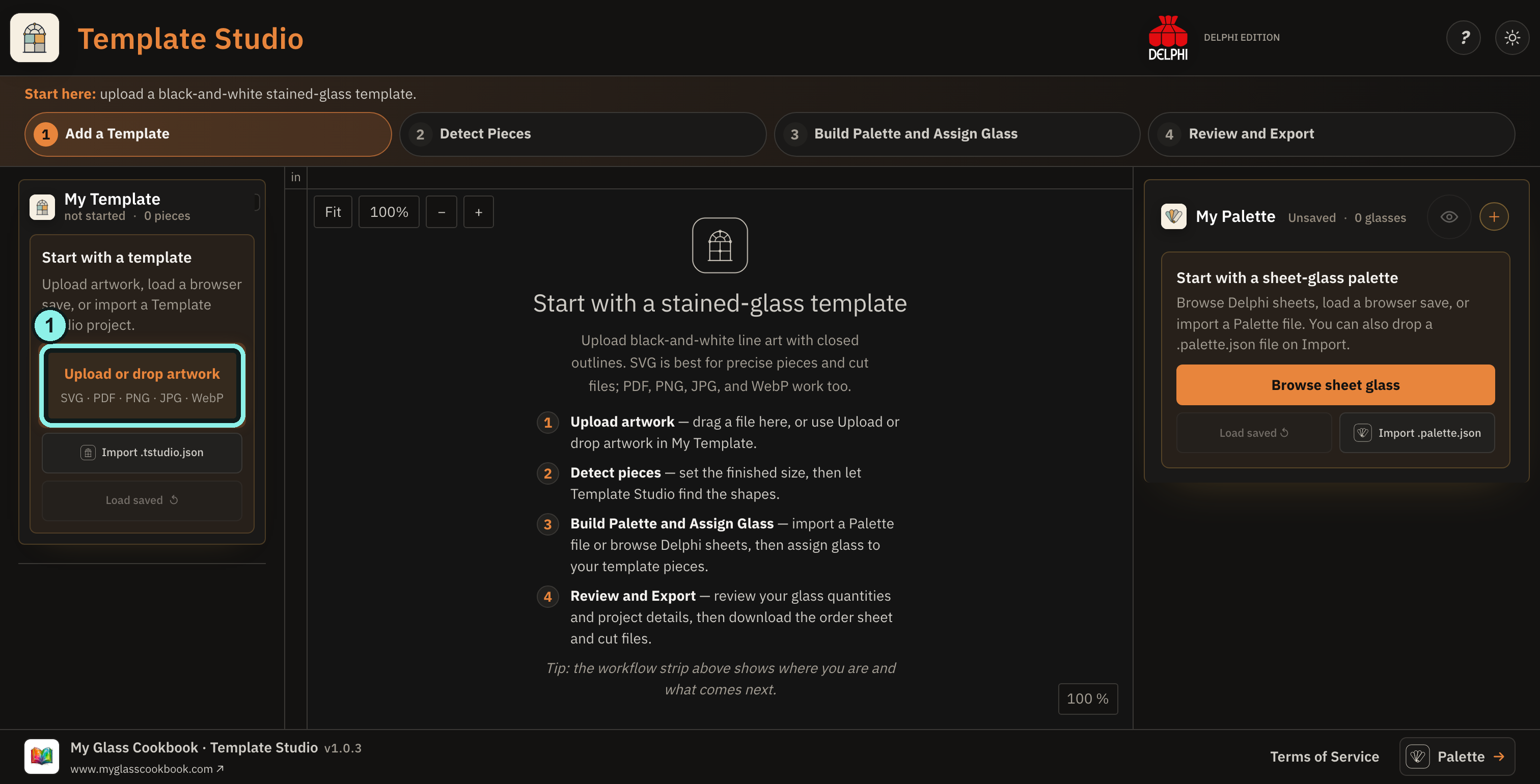
- Choose Upload or drop artwork in My Template.
The center is the pattern canvas; My Palette is on the right. Phones show product information rather than this editor.
Tap the image to view it full size.Step 2
Add a pattern
For your project, upload your own black-and-white pattern through My Template. This example shows a peacock drawing prepared as a PNG from the supplied SVG, whose complex paths could not be reliably detected as pieces. PNG artwork needs Detect pieces rather than automatic SVG detection; your pattern may have different dimensions and regions.
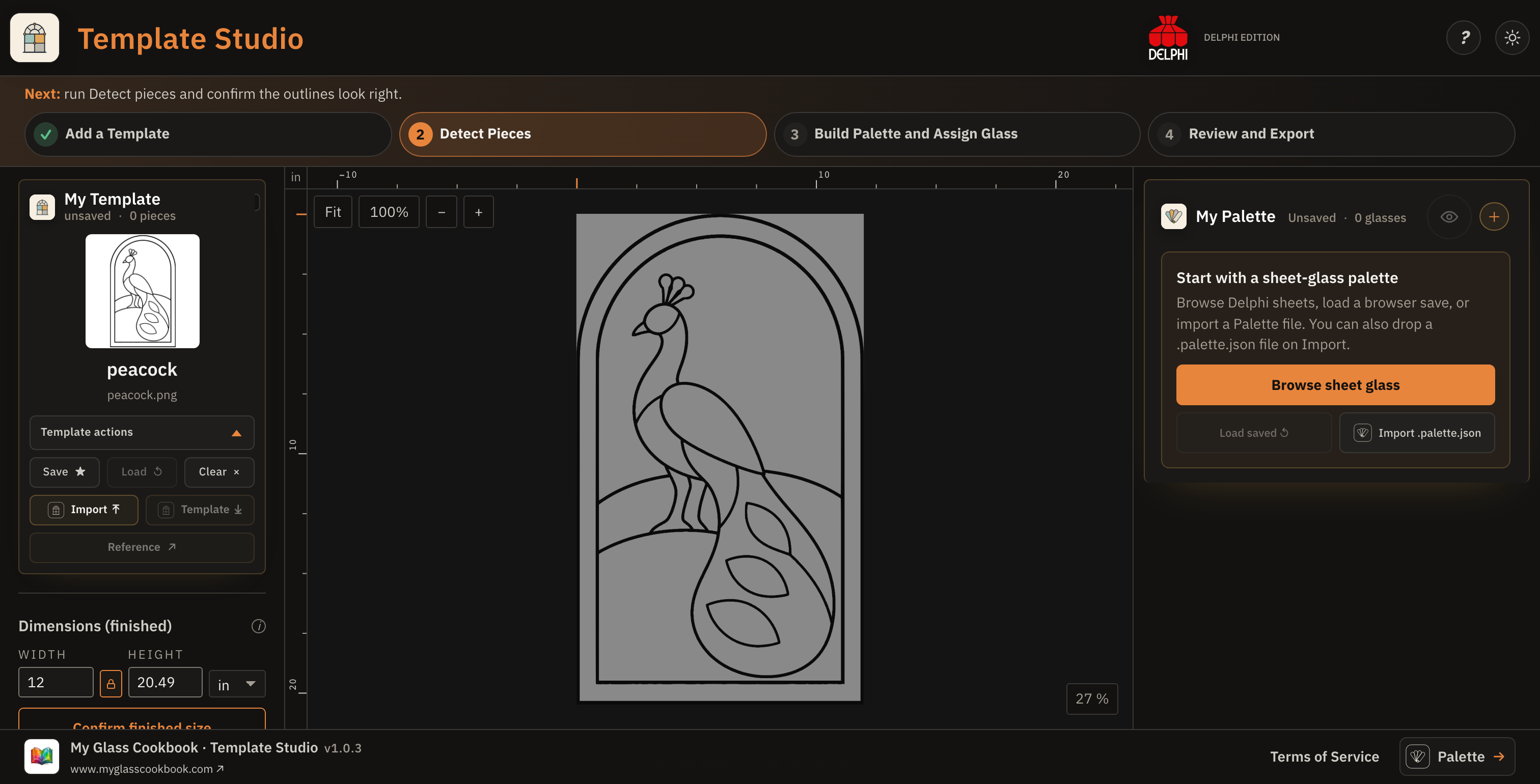
Check that the full bird, arched border, and feather outlines appear. Other formats such as SVG, PDF, JPG, and WebP are supported, but the steps may differ.
Tap the image to view it full size.Step 3
Set the size and check the pieces
In this example, we set the finished width to 12 inches. With the padlock on, the peacock is 20.49 inches high. Confirm the finished size, then choose Detect pieces. This image produces 22 regions: two are empty corners outside the arch. Select each of those corners and choose Not a piece, leaving 20 active pieces in this example before assigning glass.
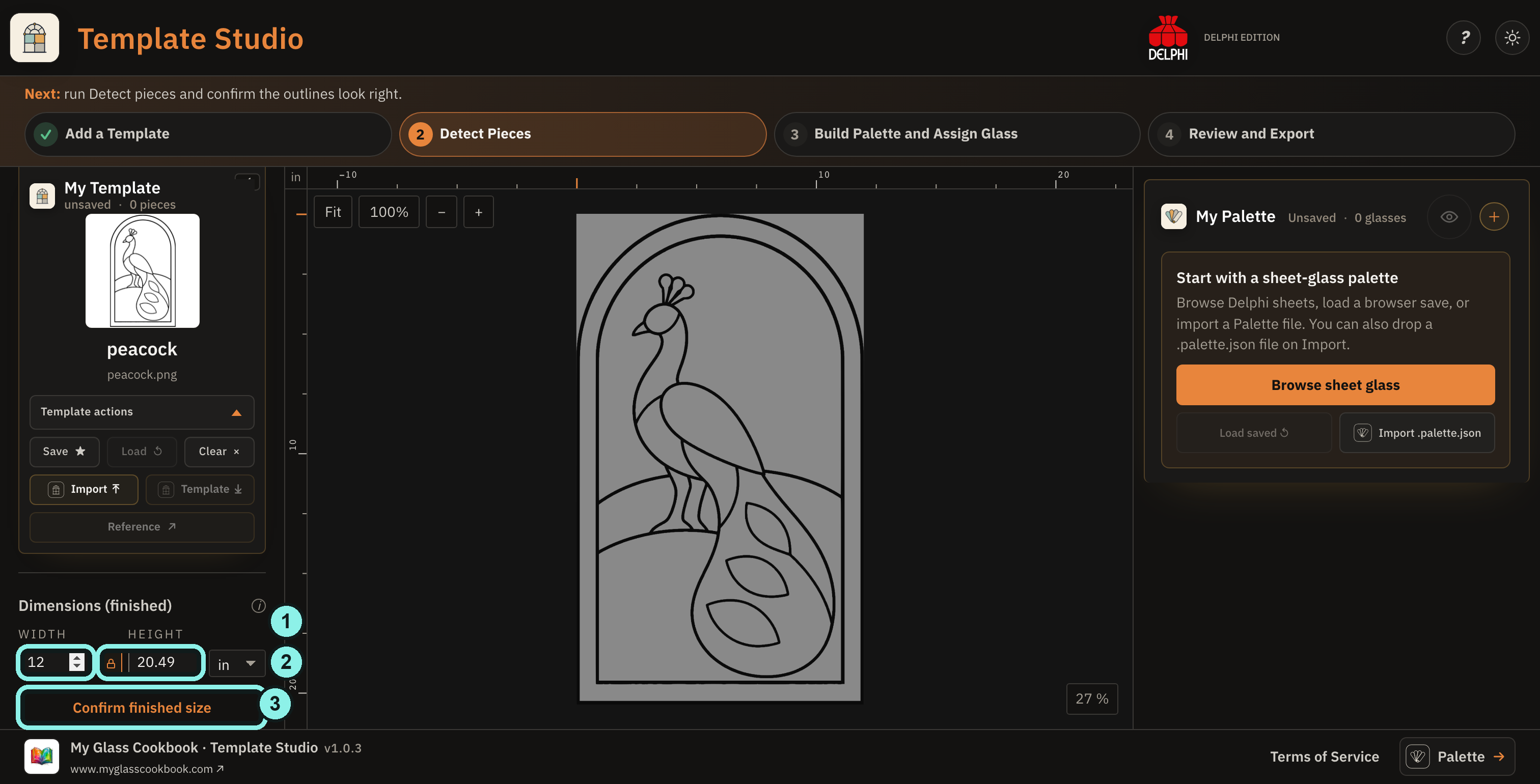
- Set the finished width.
- Keep the proportions locked and check the calculated height and unit.
- Choose Confirm finished size.
The proportions come from the supplied peacock artwork; change the width if your real panel needs another finished size.
Tap the image to view it full size.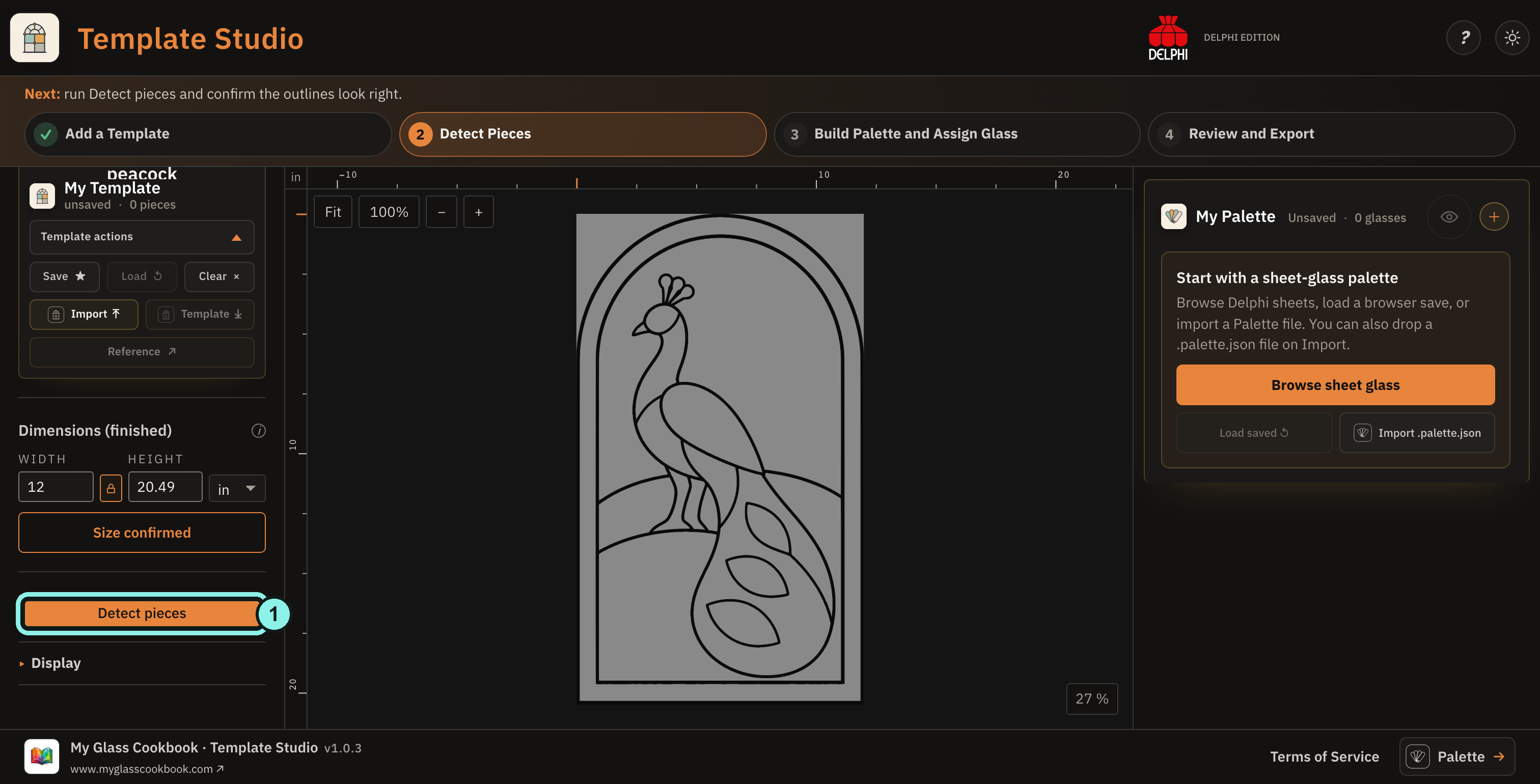
- Choose Detect pieces to trace the PNG.
Detection is a real analysis step for this image. Wait for it to finish before reviewing the colored region overlays.
Tap the image to view it full size.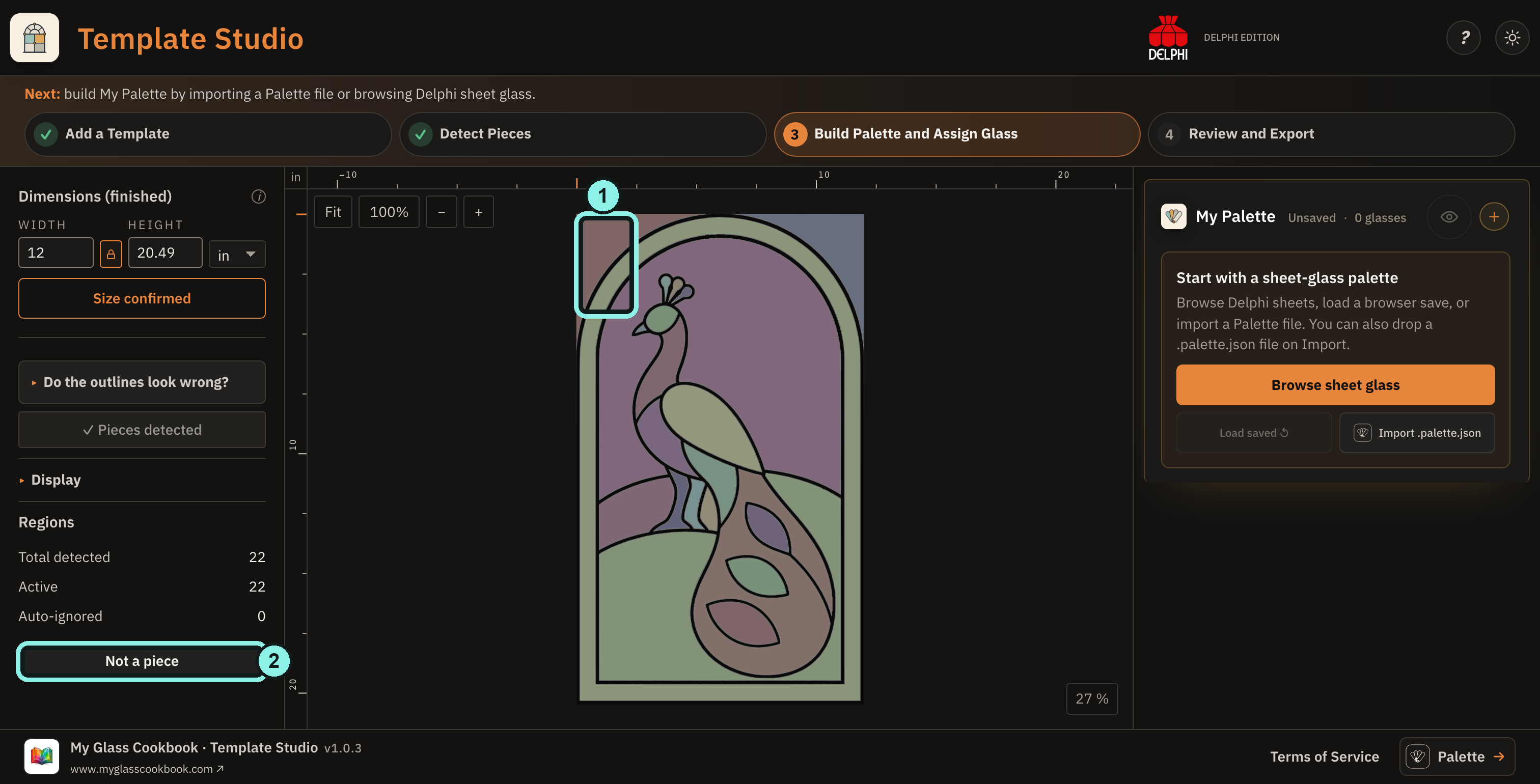
- Select an empty corner outside the arch; repeat for the opposite corner.
- Choose Not a piece for each false region.
Do not assign sheet glass to those two background corners. They lie outside the arched panel.
Tap the image to view it full size.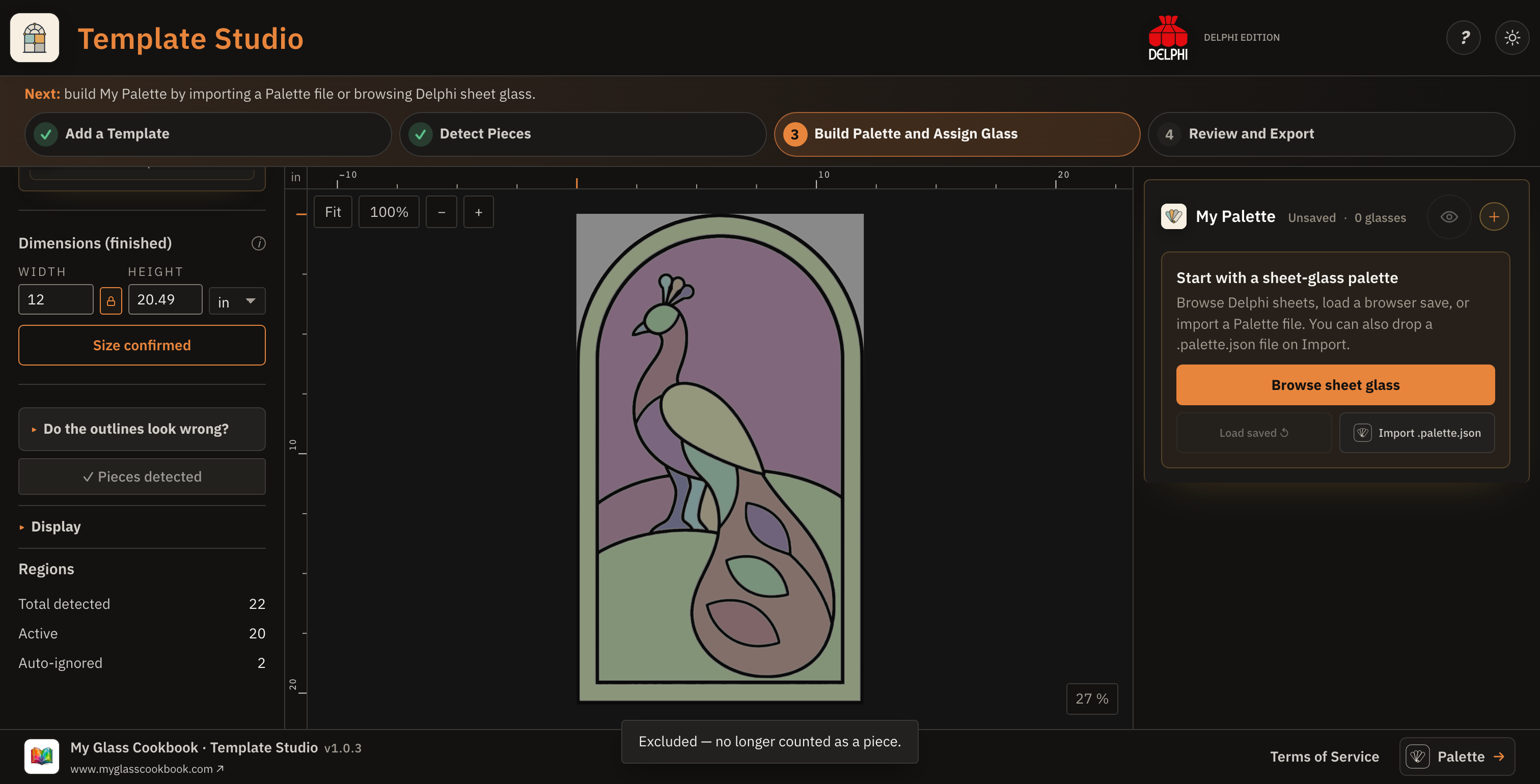
The region panel now reads 22 detected, 20 active, and two ignored. Inspect the remaining outlines against the original before continuing.
Tap the image to view it full size.Step 4
Choose sheet glass
In My Palette, choose Browse sheet glass. Filter to Stained Glass, search by product name or code, and use + on an exact sheet. This peacock uses five real sheets from Oceanside, Bullseye, and Oceana; the products appear in My Palette.
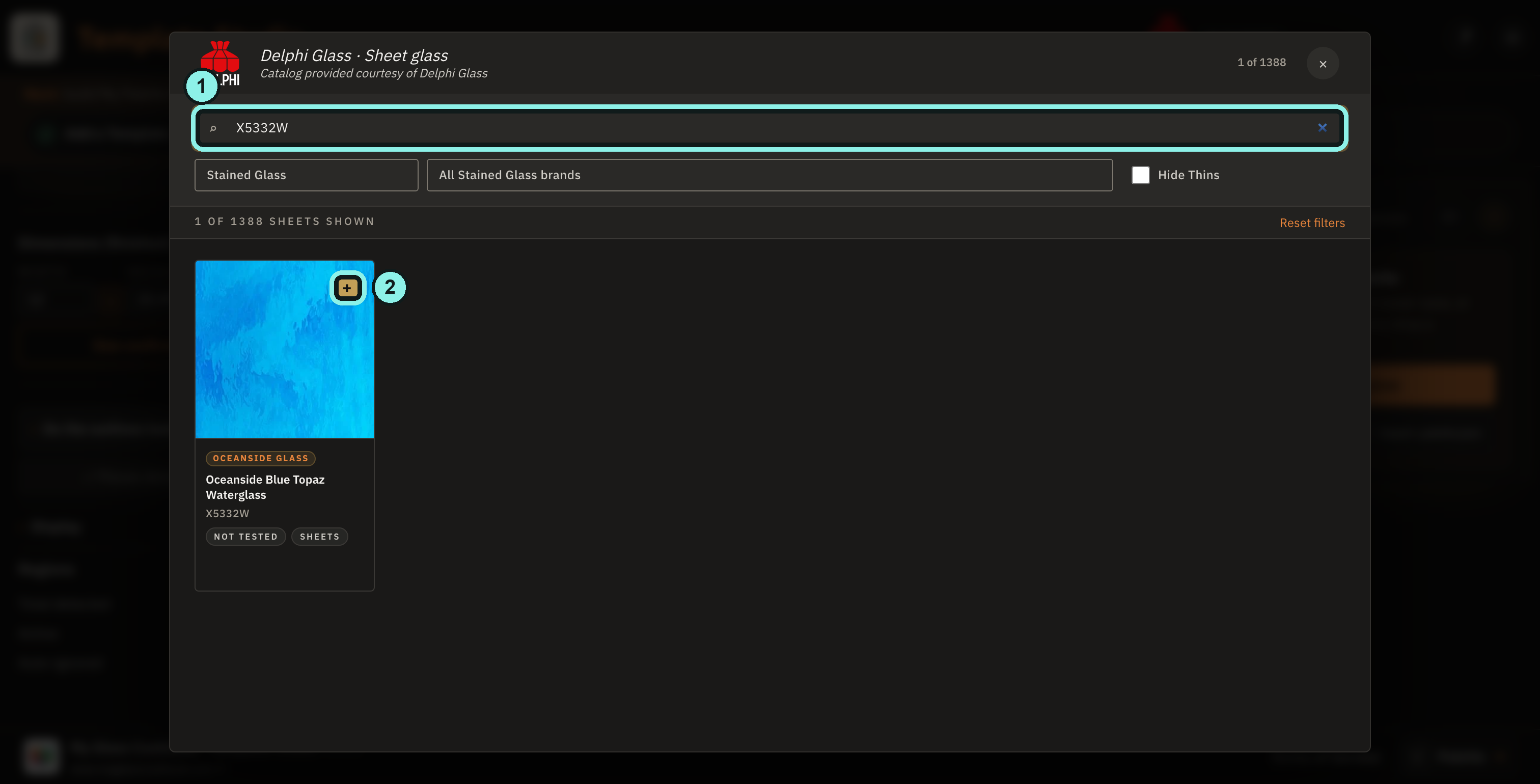
- Search by glass name or product code.
- Use + on the exact sheet you want.
The example starts with Oceanside Blue Topaz Waterglass (X5332W); check the manufacturer, product code, and glass family for each choice.
Tap the image to view it full size.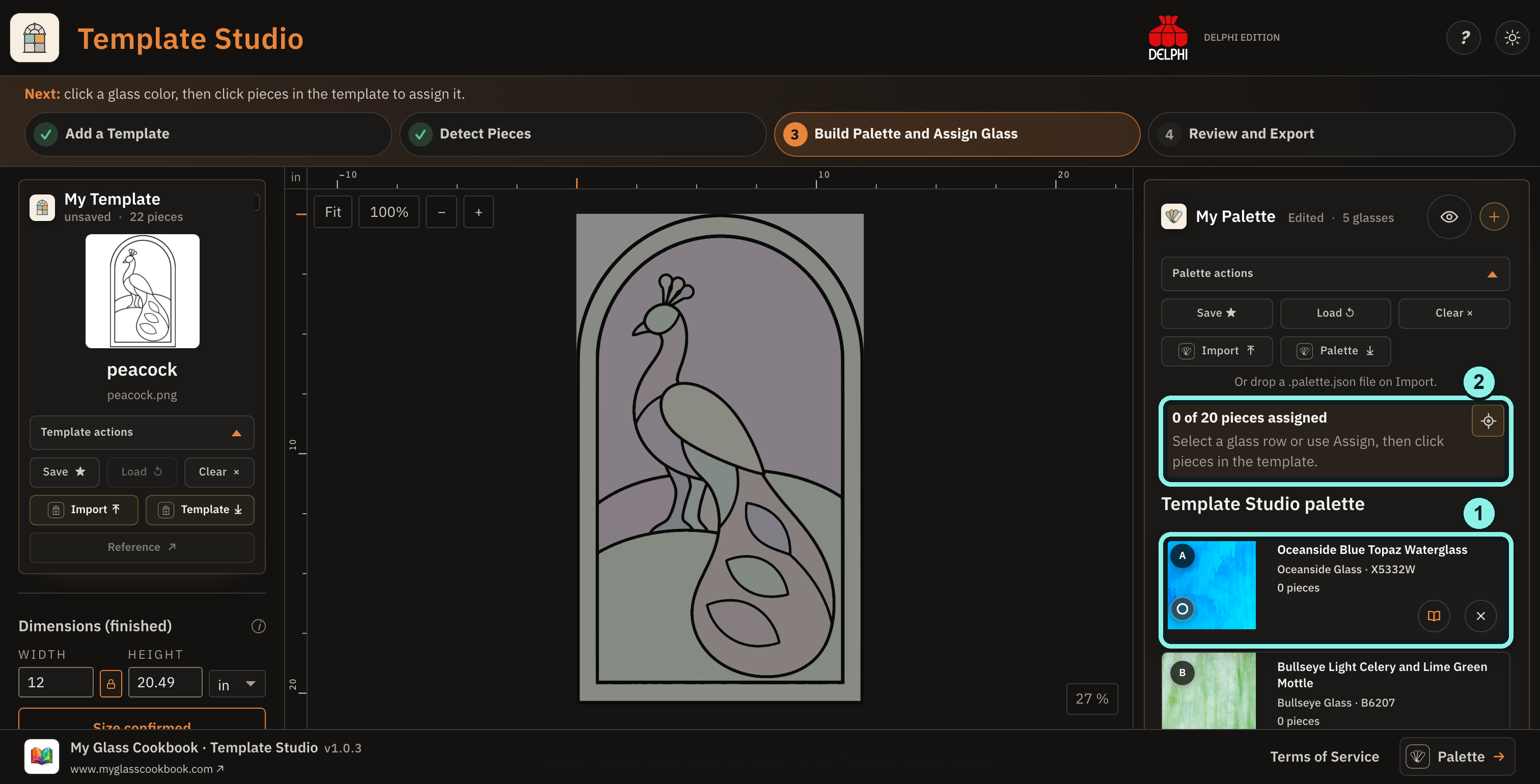
- Select a glass row to make it active.
- The counter starts at 0 of 20 active pieces assigned.
The other colors include green, yellow, pale purple, and a blue-green mottled sheet. A .palette.json file can also bring in exact sheet-glass selections.
Tap the image to view it full size.Step 5
Assign glass to the pieces
Choose a glass row in My Palette, then click the pieces you want to assign to that sheet. Switch rows to use another glass. The counter updates as you work; check every piece before calling the plan complete.
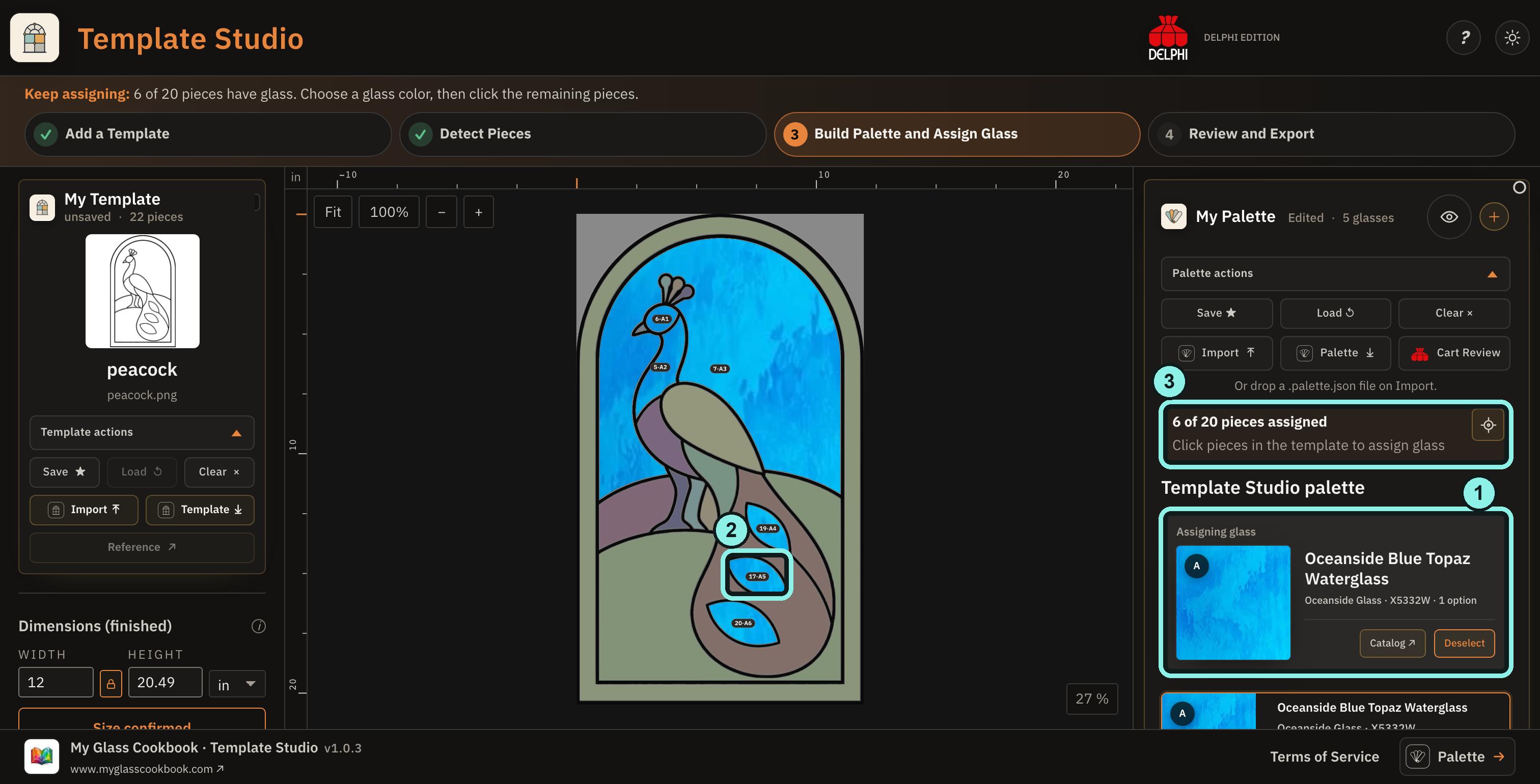
- The active glass appears under Assigning glass.
- Click a piece in the pattern to apply it.
- Follow the assigned-piece counter.
The muted colors on unassigned pieces are placeholders, not selected glass. Choose Deselect when you want piece clicks to inspect rather than assign.
Tap the image to view it full size.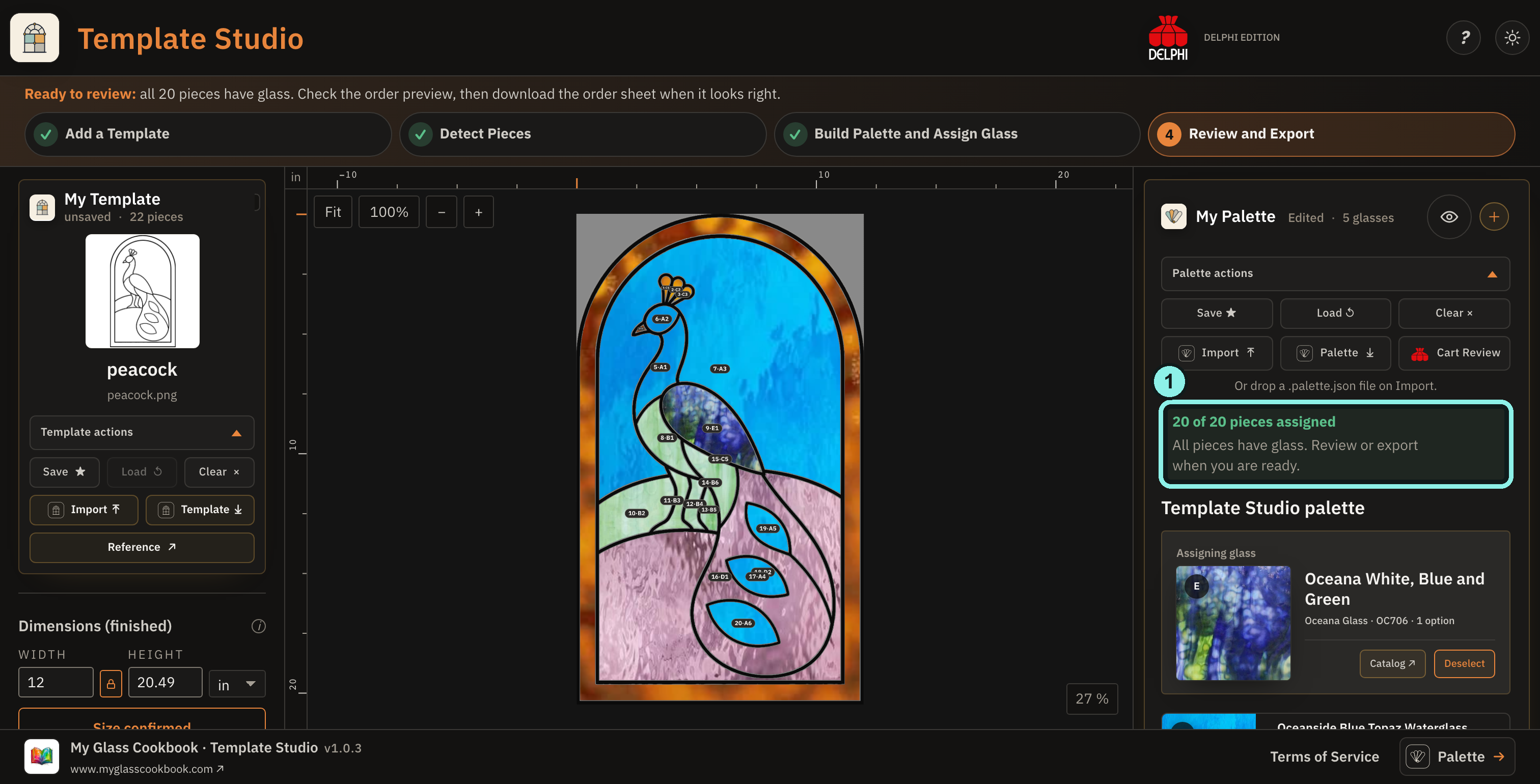
- 20 of 20 pieces assigned means every active piece has glass.
The peacock is a planning preview using catalog imagery, not a guarantee of how the sheets will look together in transmitted light.
Tap the image to view it full size.Step 6
Review the material and order choices
Choose Cart Review in Palette actions. Check the five products, exact Delphi sheet SKUs, estimated area with the planning breakage allowance, proposed order sizes, and quantities. Download the order sheet when the plan looks right; continuing to Delphi’s cart is optional and only validated lines are carried over.
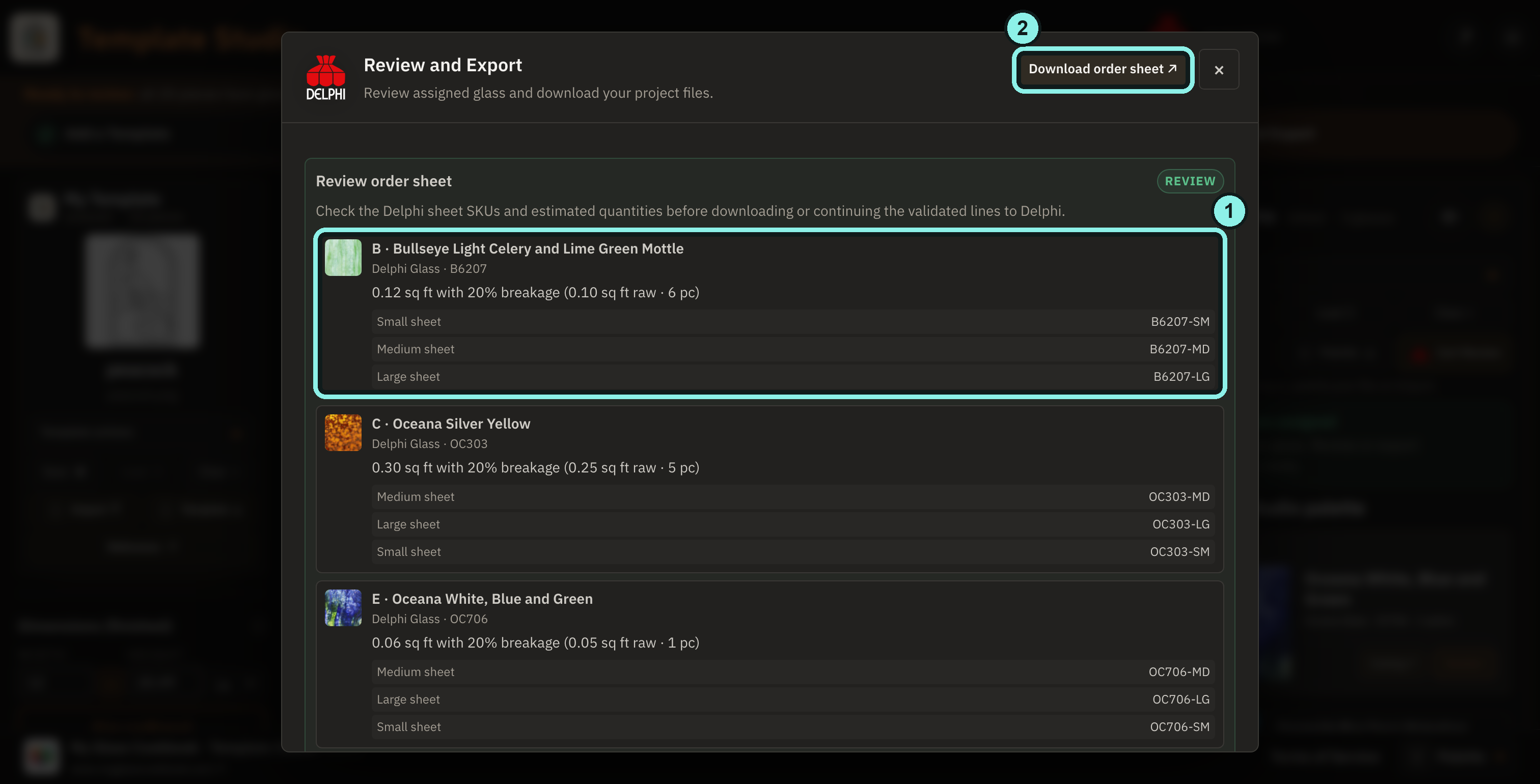
- Inspect product codes and estimated material, including 20% breakage in this example.
- Choose Download order sheet when you want an order record.
These quantities are planning estimates, not proof that every curved piece fits a purchased sheet. Check physical sheet dimensions and orientation before buying.
Tap the image to view it full size.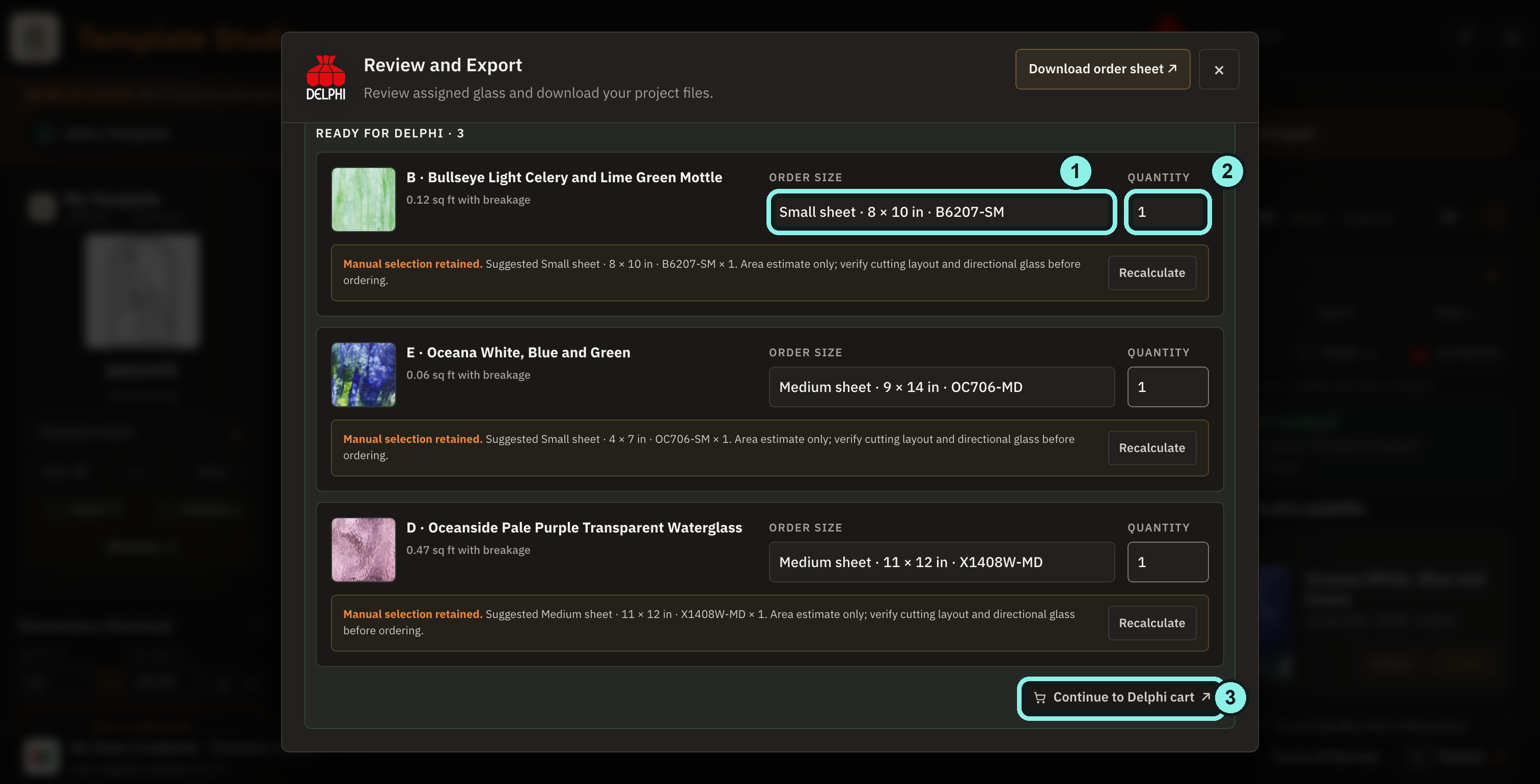
- Confirm or change each exact order size.
- Check the quantity for every line.
- Continue to Delphi cart only when all lines are ready.
This capture shows three lines ready for Delphi, not all five. Inspect every line and resolve warnings before ordering; a suggested size is not a cutting guarantee. Delphi confirms current pricing and availability.
Tap the image to view it full size.Step 7
Keep a portable copy
Under Template actions, choose Save to name a browser save for this device. Also choose Template ↓ to download a .tstudio.json project file containing the pattern and assignments; Import .tstudio.json opens that file on another device.
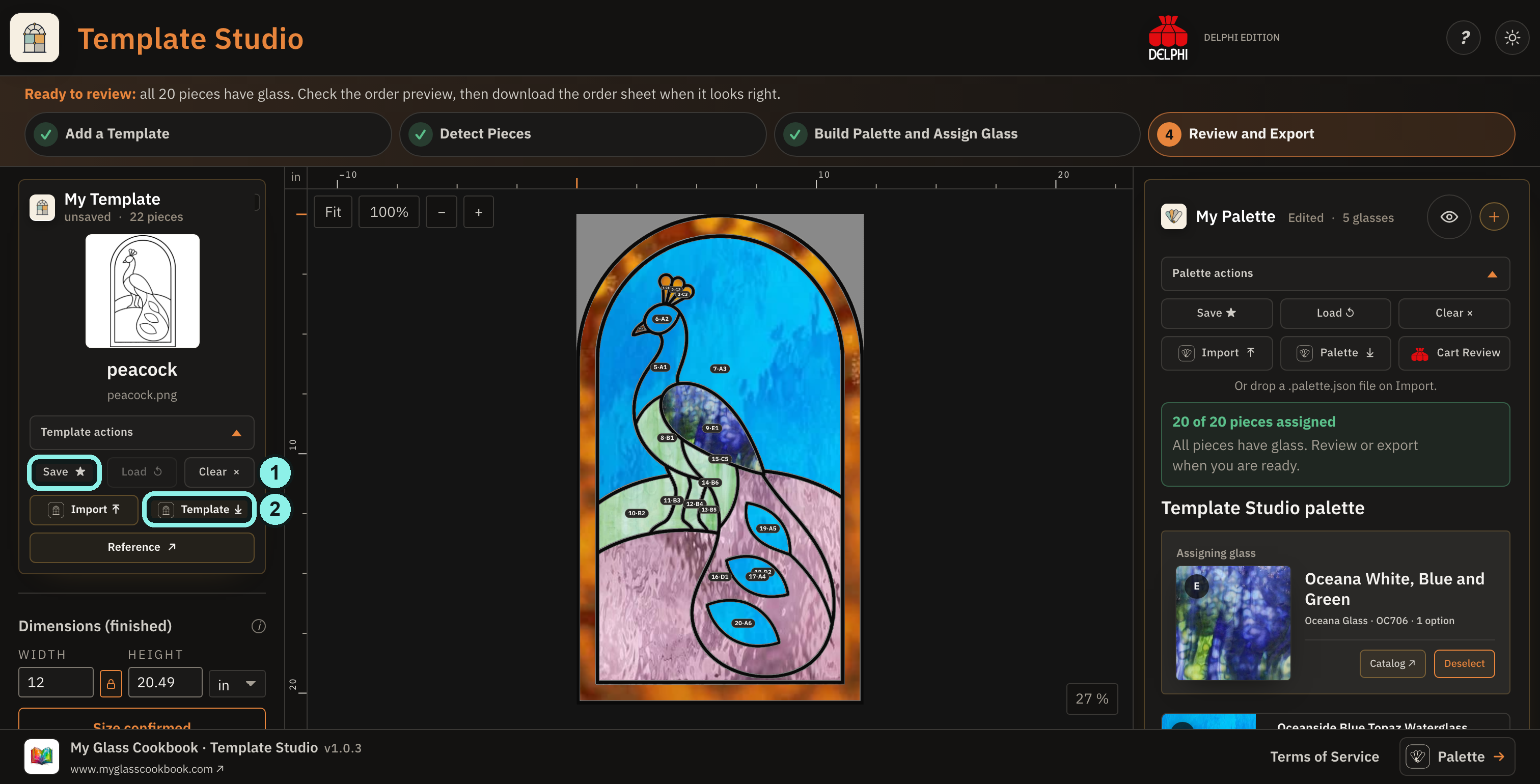
- Save the project in this browser.
- Download the portable Template project file.
A browser save does not sync between devices. Keep the downloaded project file somewhere you can find it later.
Tap the image to view it full size.
When you’re ready
A few more things you can do
- Make a printable Reference: After confirming size and assigning every active piece, choose Reference in Template actions. Set the breakage allowance, export, and use the browser’s Print or Save as PDF option.
- Bring glass from Palette: Build a color story in Palette’s guide, download .palette.json, and import its exact sheet-glass selections here.
- Return later: Load a browser save on this device, or use Import .tstudio.json to open your portable project file elsewhere.
Before cutting or ordering: Image-traced outlines, glass previews, and quantity estimates need your review. Confirm that each shape is a real piece, the size matches your pattern, the glass is appropriate for your process, and the exact sheet can accommodate the cutting layout. Pricing and availability are confirmed by Delphi.