Follow along, one step at a time

Getting Started with Palette
Turn one photo into a working glass palette. We’ll make five colors, review the suggested glass, and save a copy you can use later.
Keep this page open beside Palette, or switch between the two tabs. The screenshots show Palette’s dark desktop interface; the same actions are available on phones.
Step 1
Open Palette
Open Palette and stay on Build palette → Upload Image. My Palette is where your colors and glass choices collect as you work.
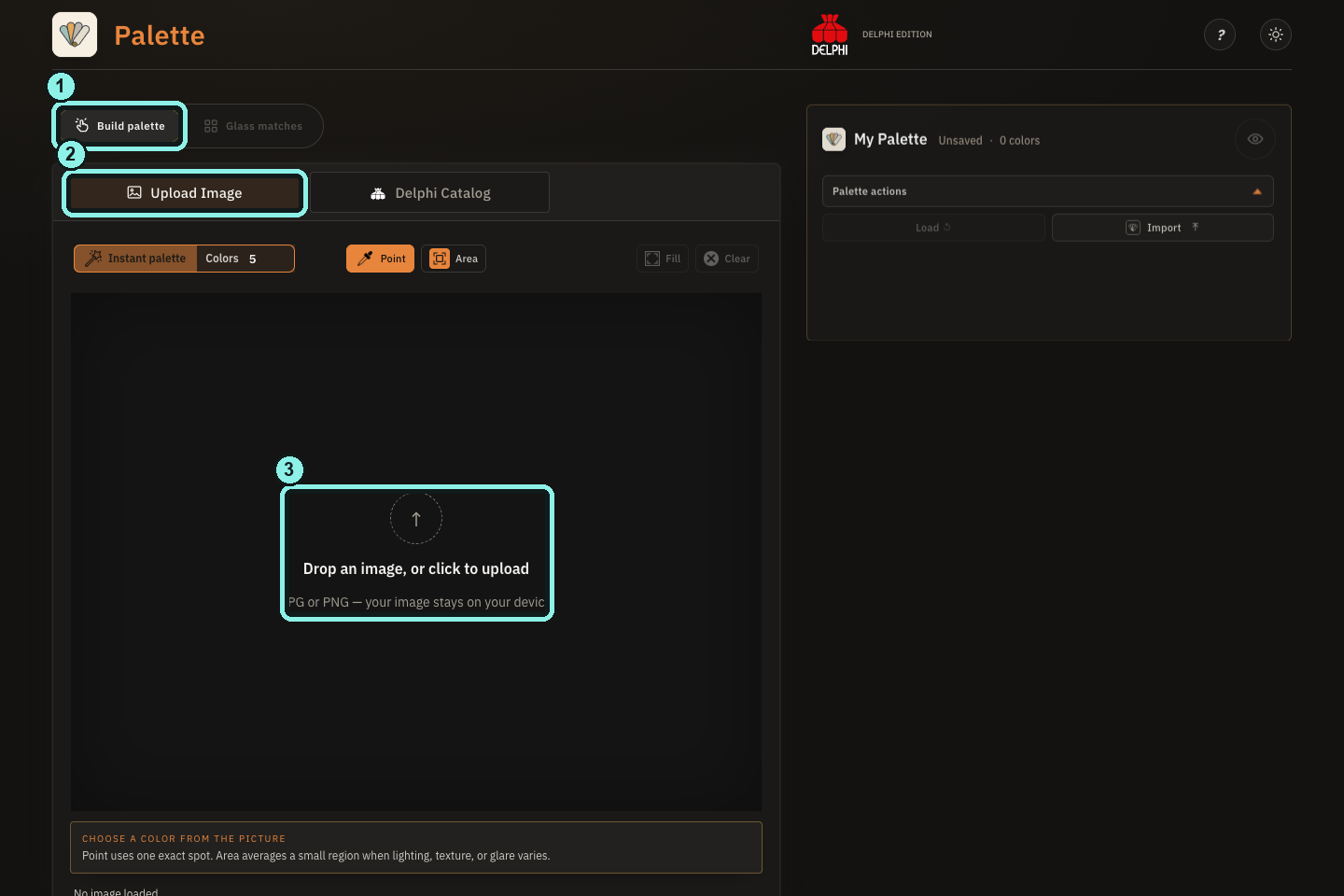
- Stay in Build palette.
- Choose Upload Image.
- Click here or drop in your photo.
The empty workspace is ready for a photo. On a phone, use the bottom navigation to switch between Build palette, Glass matches, and My Palette.
Tap the image to see the outlines full size.Step 2
Add a photo
Click the upload area, or drop in a JPG or PNG. Your photo stays on your device. For this walk-through, we used a peacock photo.
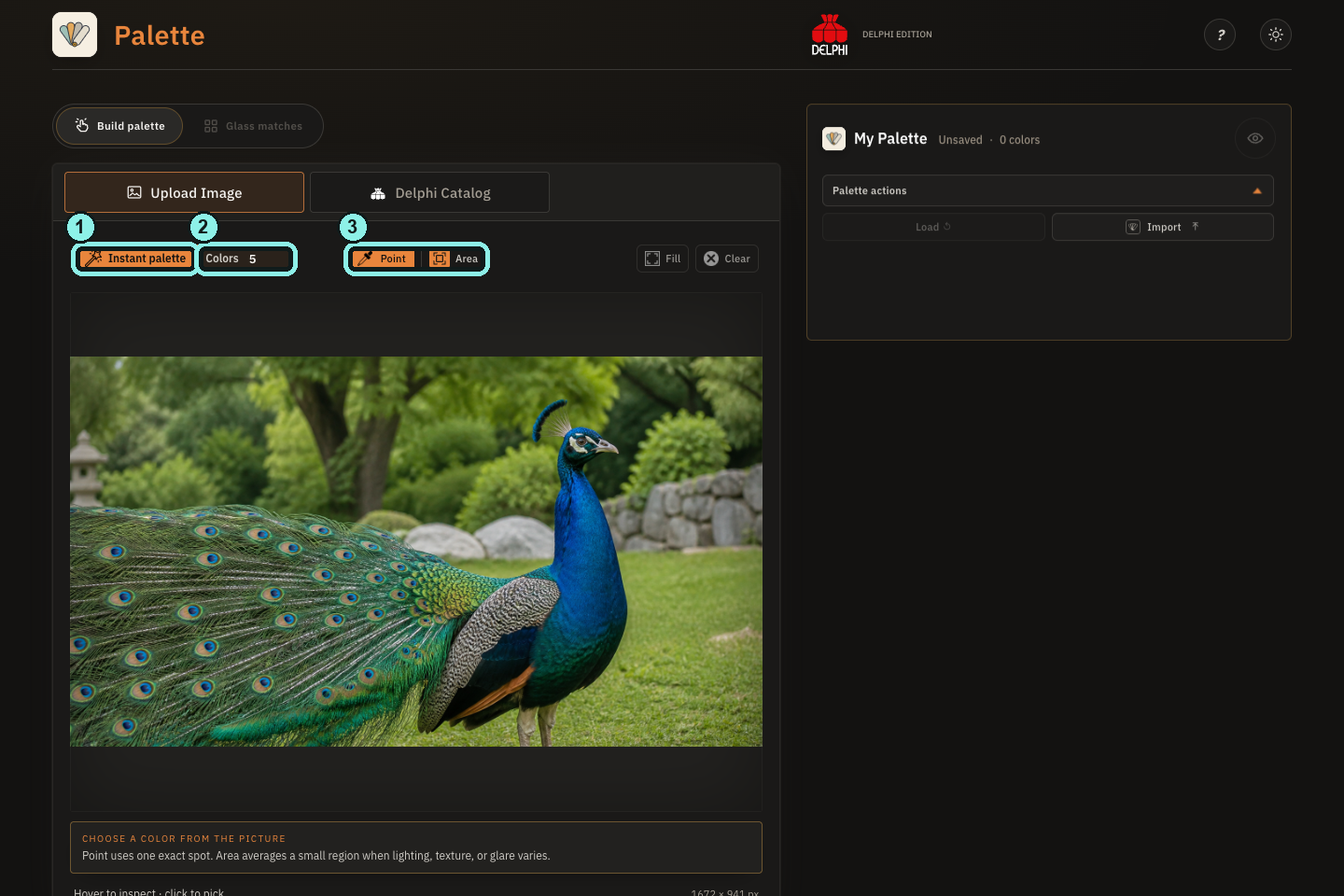
- Instant palette is the next click.
- Leave Colors at 5, or choose 3–10.
- Optional: pick manually with Point or Area.
You can also choose Point and click one spot, or choose Area and drag around a small region to pick colors yourself.
Tap the image to see the outlines full size.Step 3
Make your first palette
Leave Colors at 5 and click Instant palette. Palette places lettered picks on the photo and suggests glass for each color. You can choose 3–10 colors before creating it.
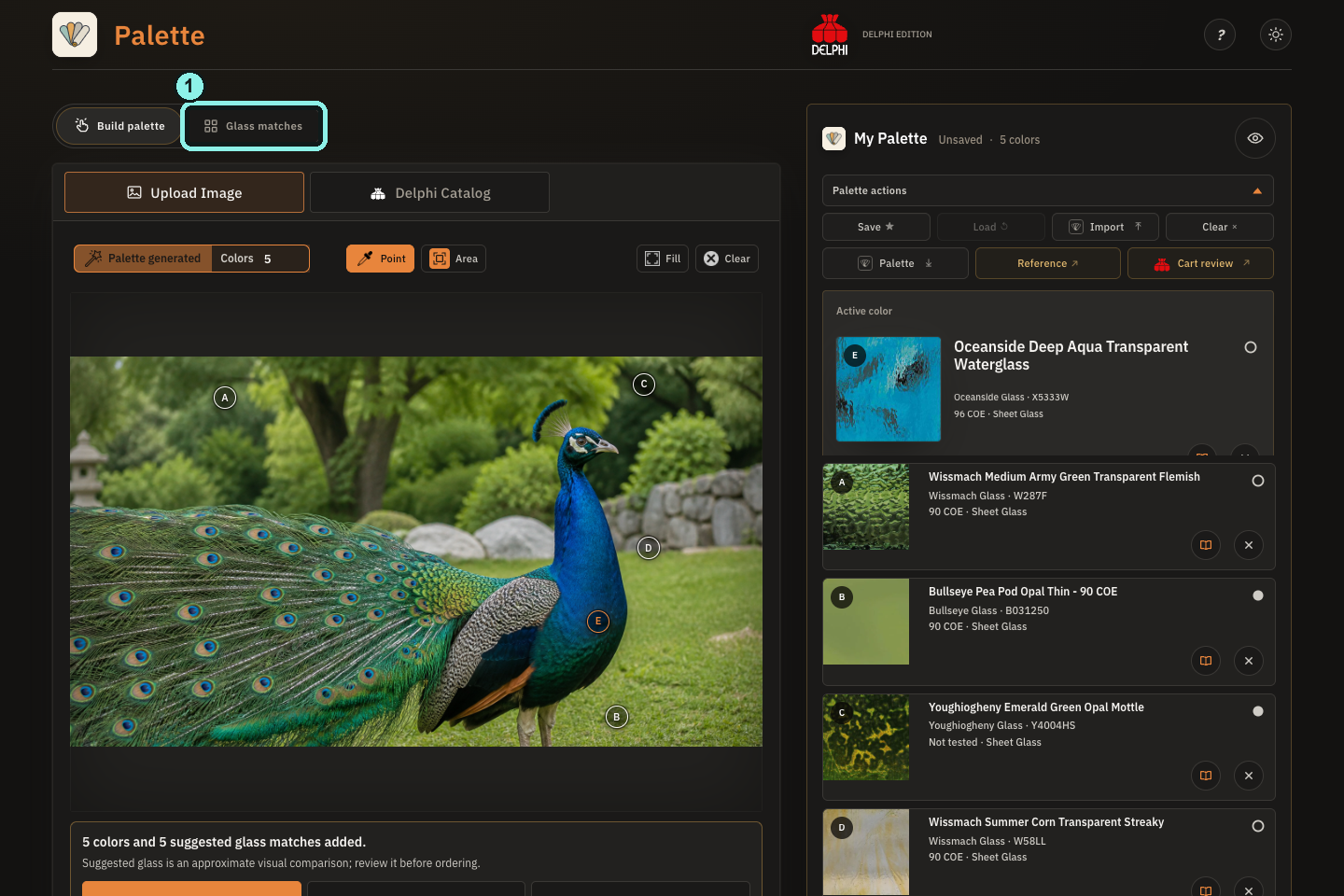
- After the colors appear, open Glass matches.
The suggestions are visual starting points, not guarantees of how glass will look in person or after firing.
Tap the image to see the outlines full size.Step 4
Review the glass matches
Select Glass matches. Choose the glass family you need, then compare product photos, names, codes, forms, and close alternatives. Click a color in My Palette to review its matches.
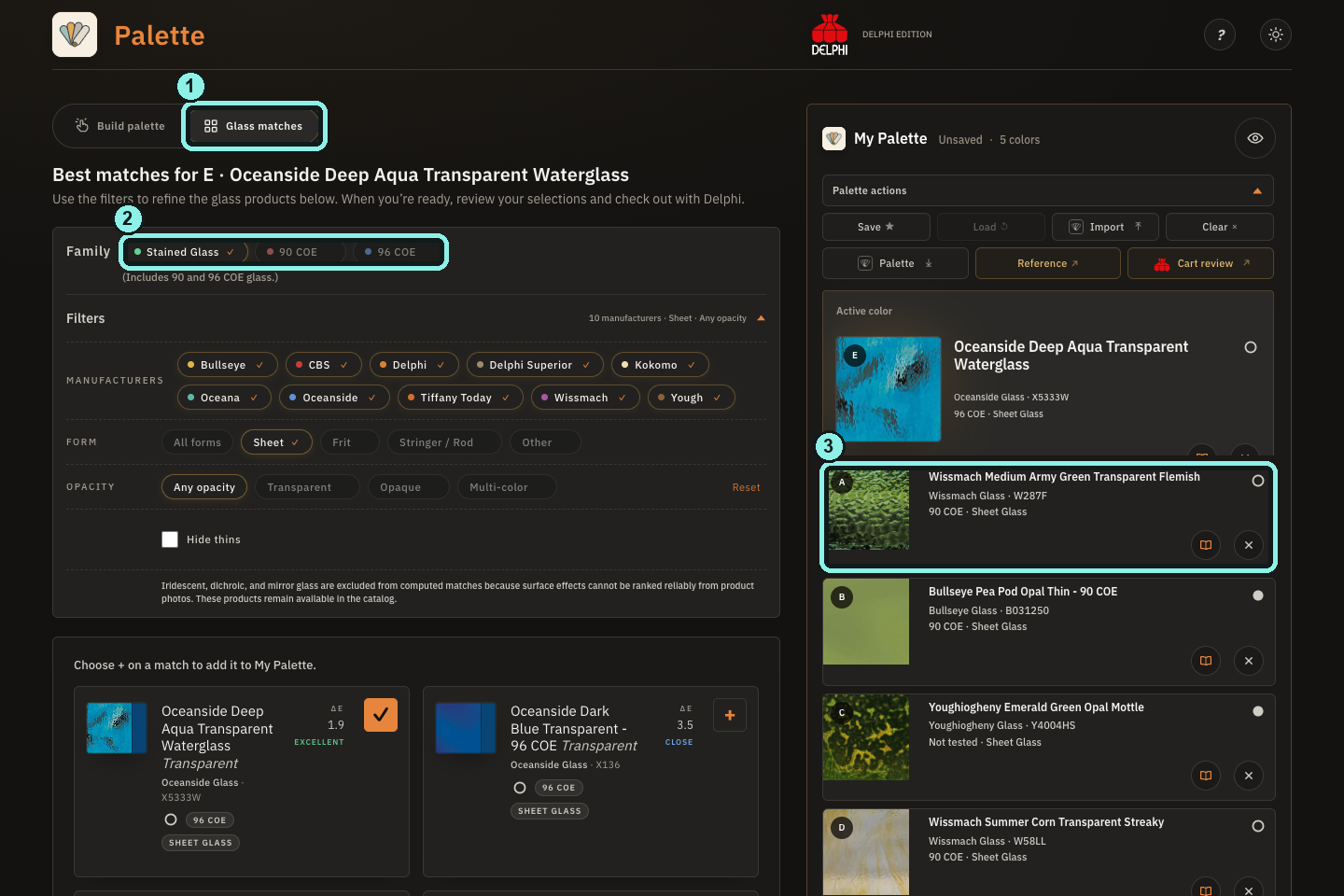
- Open Glass matches.
- Choose one glass family for your work.
- Select another color row to see its matches.
A smaller ΔE means a closer photo-derived color comparison. Always check the actual product and compatibility before using it.
Tap the image to see the outlines full size.Step 5
Keep the glass you want
Click + on the match you prefer. Its checkmark and the product in My Palette update together. Repeat for other colors until your choices feel right.
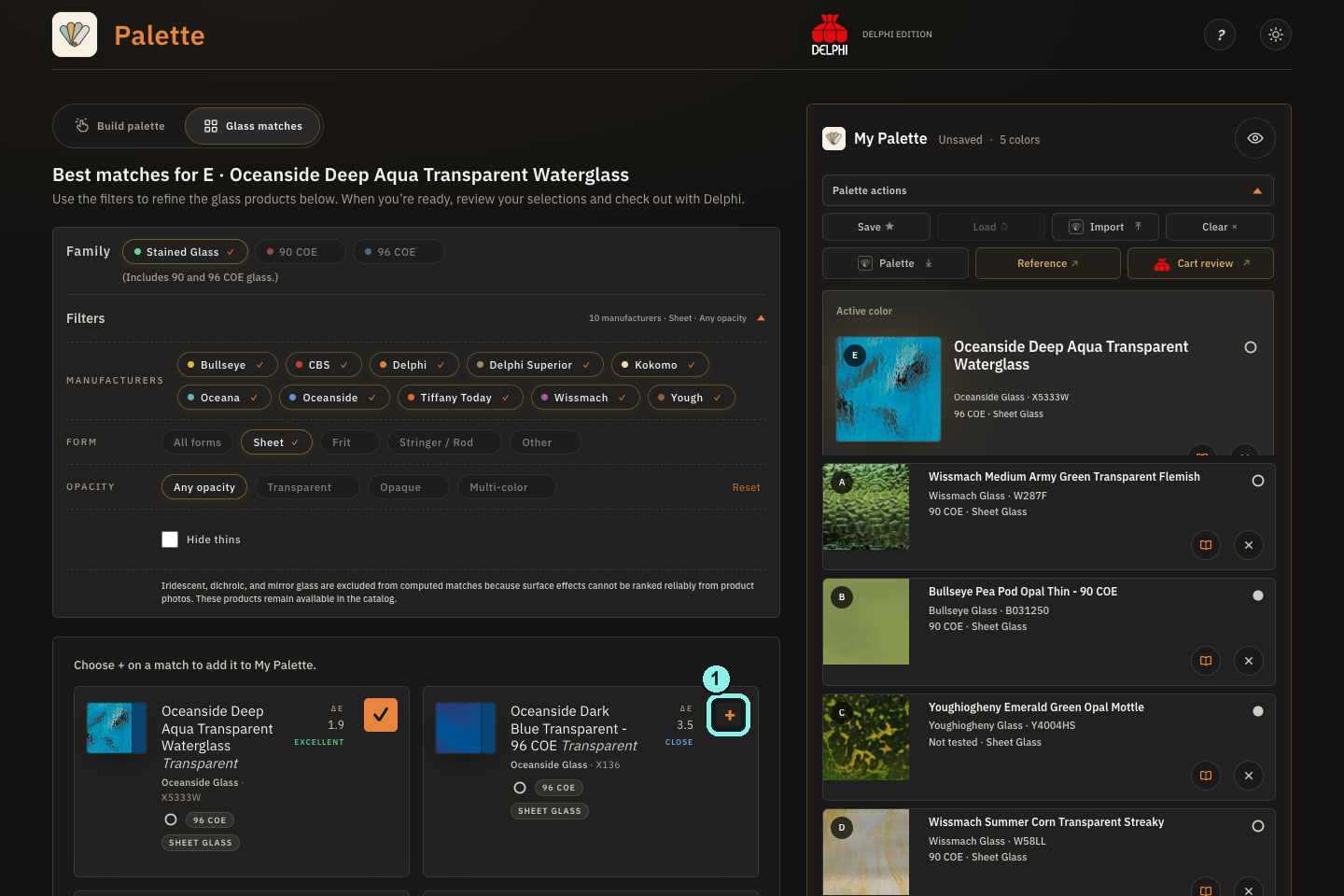
- Click + on the glass you want.
Before: the + button adds this exact glass to color E.
Tap the image to see the outlines full size.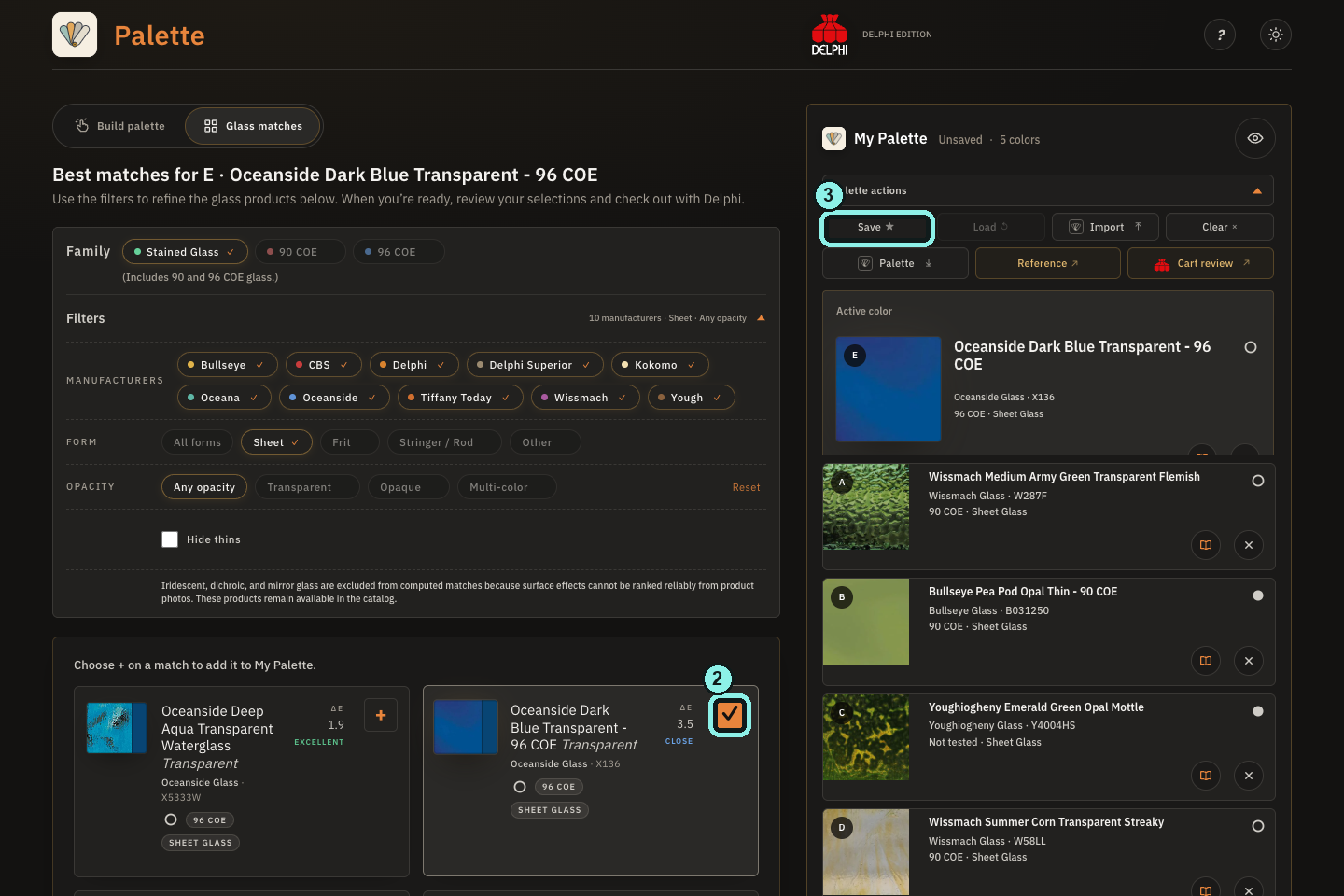
- The checkmark confirms your choice; do not click it again.
- When you are ready, click Save in My Palette.
After: My Palette now shows the selected product. Your choice stays there even if you change match filters.
Tap the image to see the outlines full size.Step 6
Save your work
In My Palette, choose Save, enter a name, and click Save Palette. Use Load to return to a palette saved in this browser.
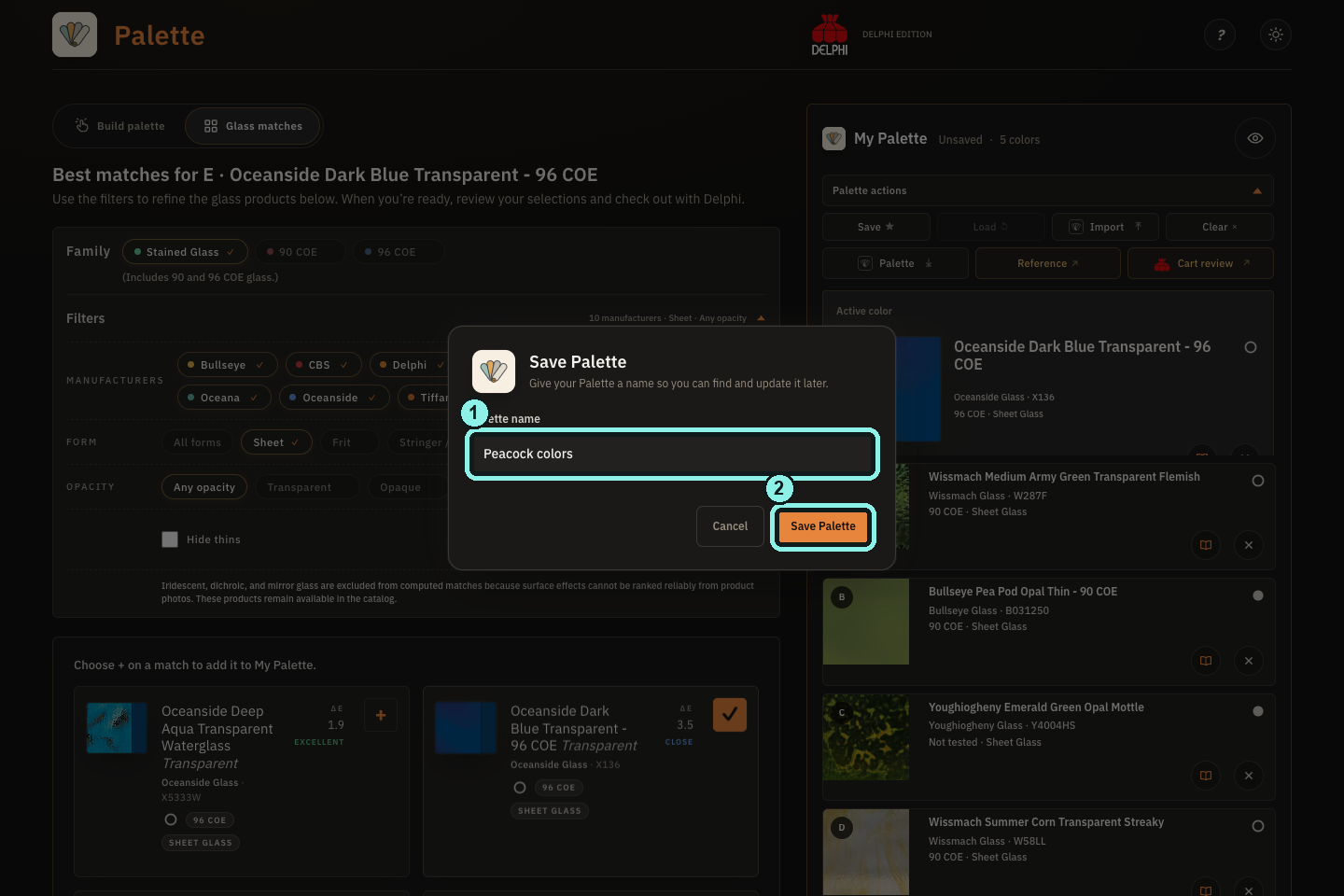
- Give your palette a name.
- Click Save Palette to confirm.
A browser save stays in this browser on this device; it does not automatically sync to another device.
Tap the image to see the outlines full size.Step 7
Download a copy
Choose Palette ↓ in Palette actions, then Download. The .palette.json file is your portable backup: use Import to open it on another device or share it with a collaborator.
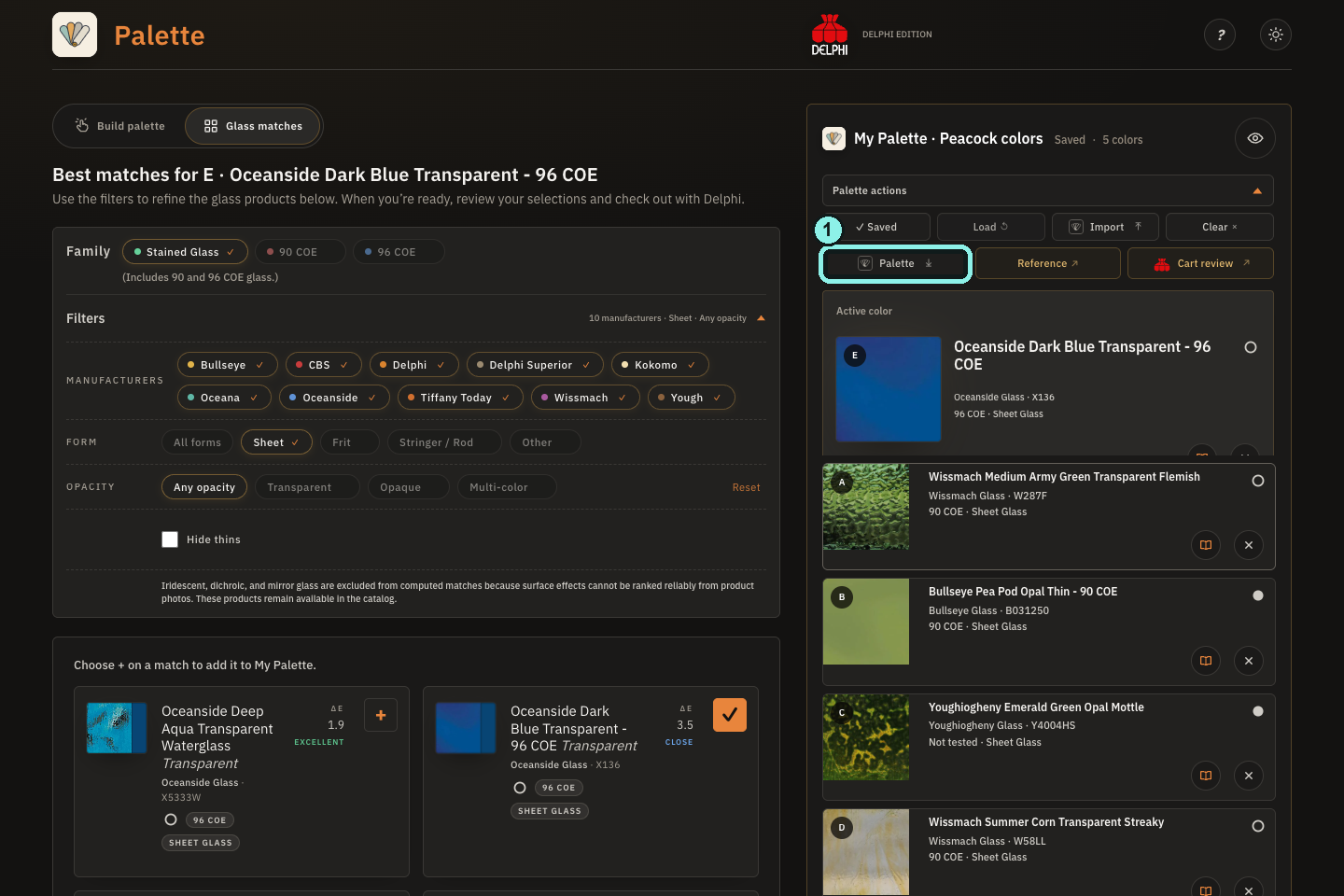
- Click Palette ↓ to open the download dialog.
Your palette is saved in this browser; download a file to take it elsewhere.
Tap the image to see the outlines full size.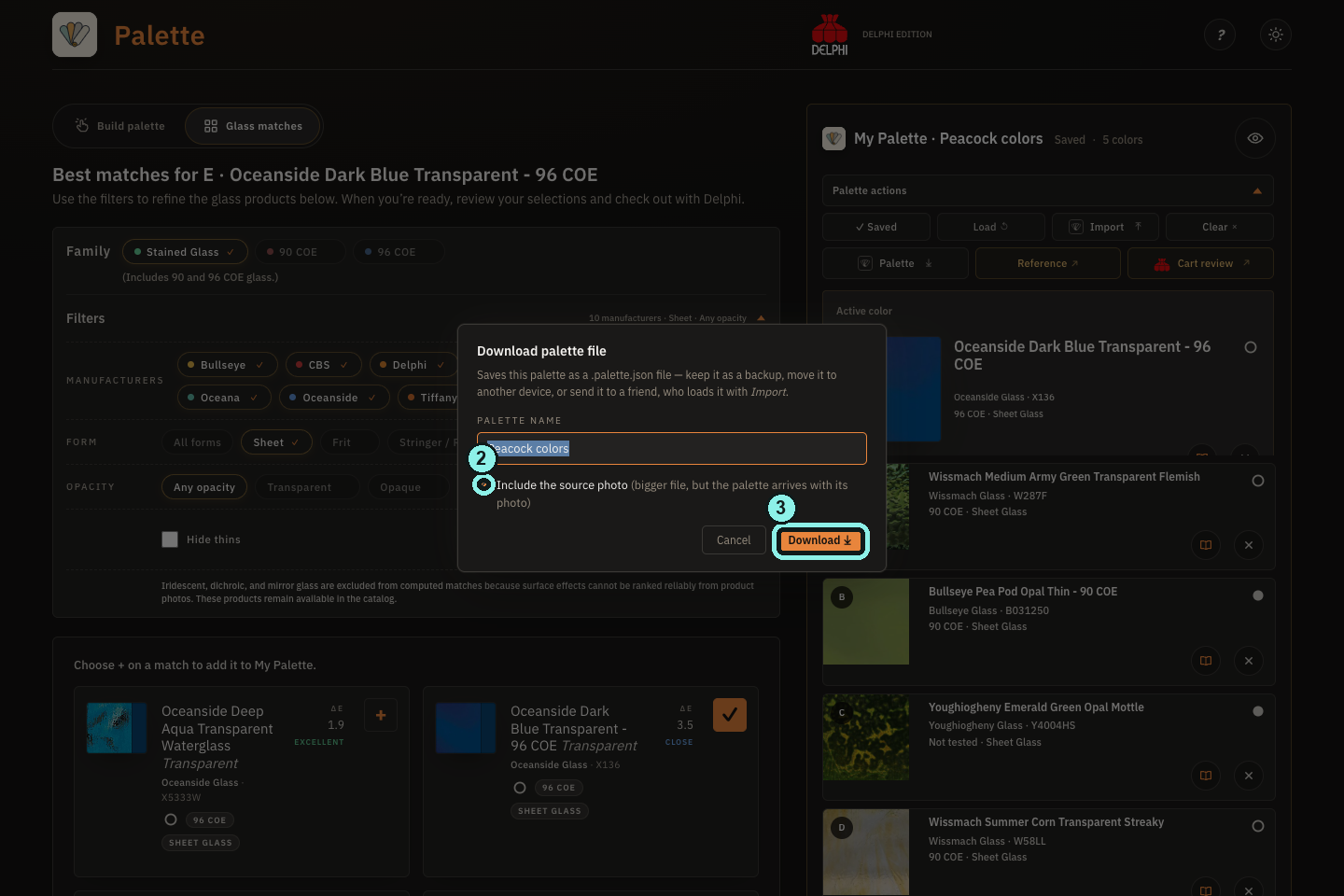
- Optional: include the source photo in the file.
- Click Download to save your .palette.json file.
Include the source photo if the next person should see it. You can also open a Reference sheet or use Cart review for selected Delphi products.
Tap the image to see the outlines full size.
When you’re ready
A few more things you can do
- Start with a product instead: In Build palette, open Delphi Catalog, choose 90 COE, 96 COE, or Stained Glass, and add exact glass to My Palette.
- Make a studio reference: Choose Reference in Palette actions for a printable record of your colors and selected products.
- Prepare an order: Open Cart review, choose available sizes and quantities, then continue to Delphi’s cart only when every line is ready. Delphi confirms current pricing and availability.
- Continue in Template Studio: Import your .palette.json file there; only exact sheet-glass selections transfer to pattern assignments.
Working with kiln glass? A visual color match is not a compatibility check. Confirm the COE and manufacturer guidance for every product before firing. The example palette mixes catalog families to demonstrate the controls; do not treat it as a firing recipe.